Overview
When running an image-managed ESXi cluster via vCenter Lifecycle Manager, adding third-party drivers — such as Nvidia vGPU host drivers — requires a specific workflow. Rather than manually installing packages per host, drivers are added as optional components directly into the cluster’s desired image. This ensures every host in the cluster gets the driver automatically during remediation.
This post walks through importing the Nvidia vGPU driver component into vCenter’s depot and attaching it to the cluster image as an optional component.
Prerequisites
Before starting, ensure the following are available:
- vCenter Server managing the cluster (vSphere 8.x recommended)
- Cluster configured with vSphere Lifecycle Manager images (not baselines)
- Nvidia vGPU driver bundle in
.zipformat — the ESXi offline depot, e.g.NVD-AIE_510.108.03-1OEM.800... - Physical GPU cards installed in ESXi hosts
- Maintenance window — remediation will reboot hosts
Step 1 — Import the Driver Depot into vCenter
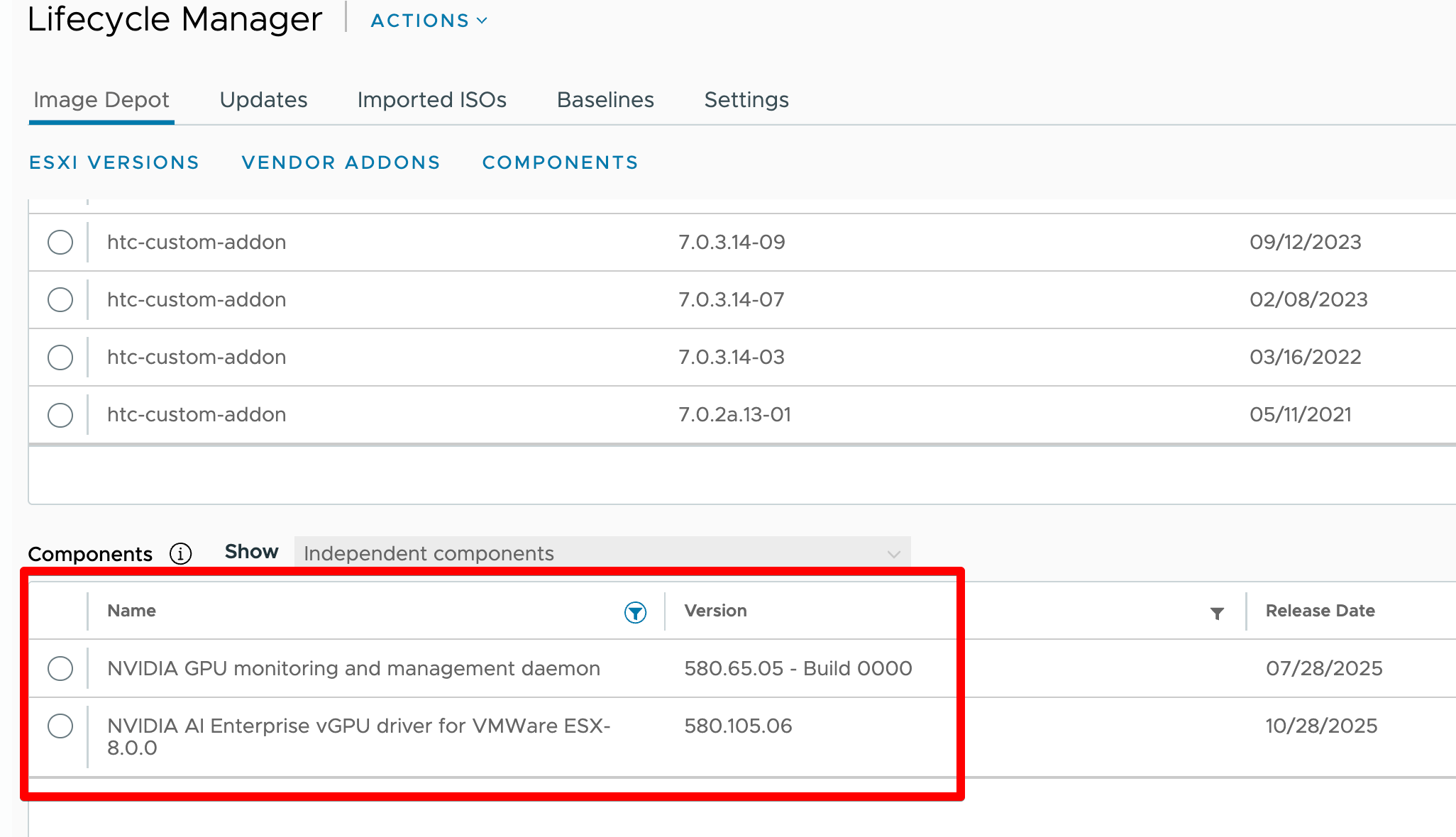
First, upload the Nvidia offline bundle so vCenter is aware of the component and can include it in managed images.
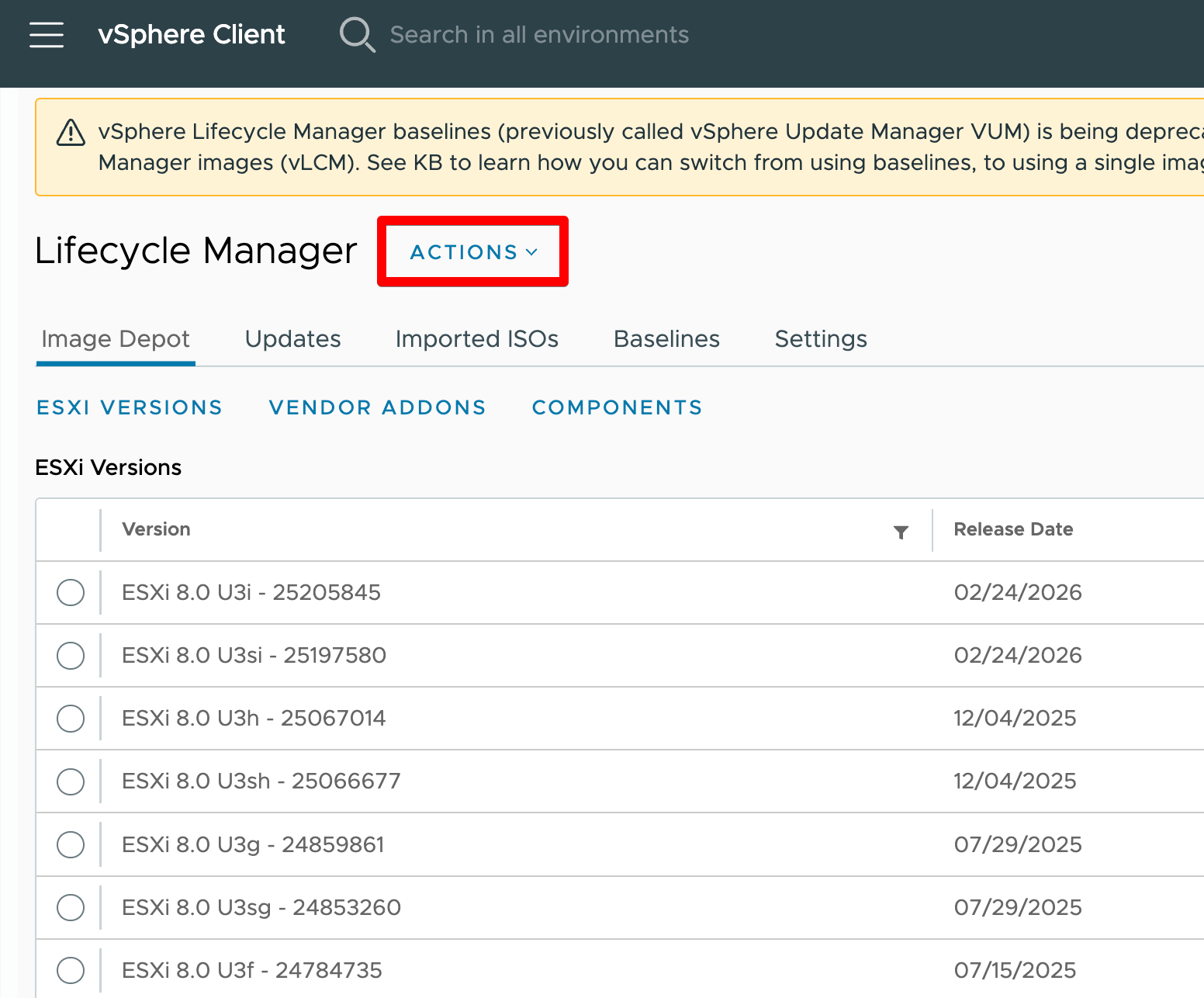
Navigate to the Lifecycle Manager:
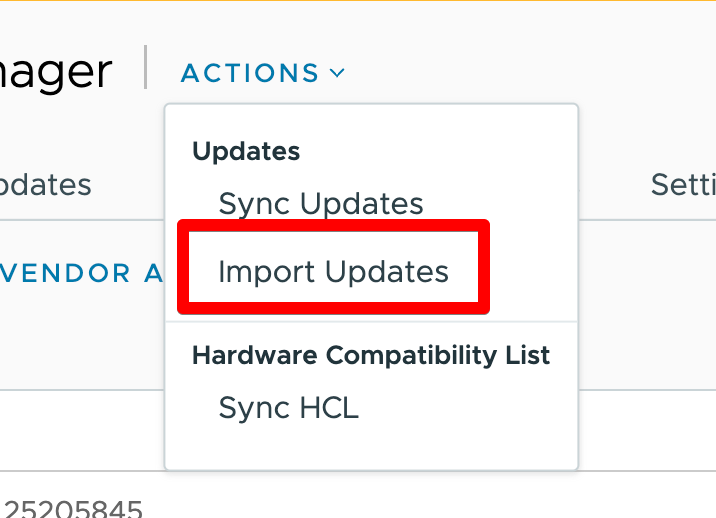
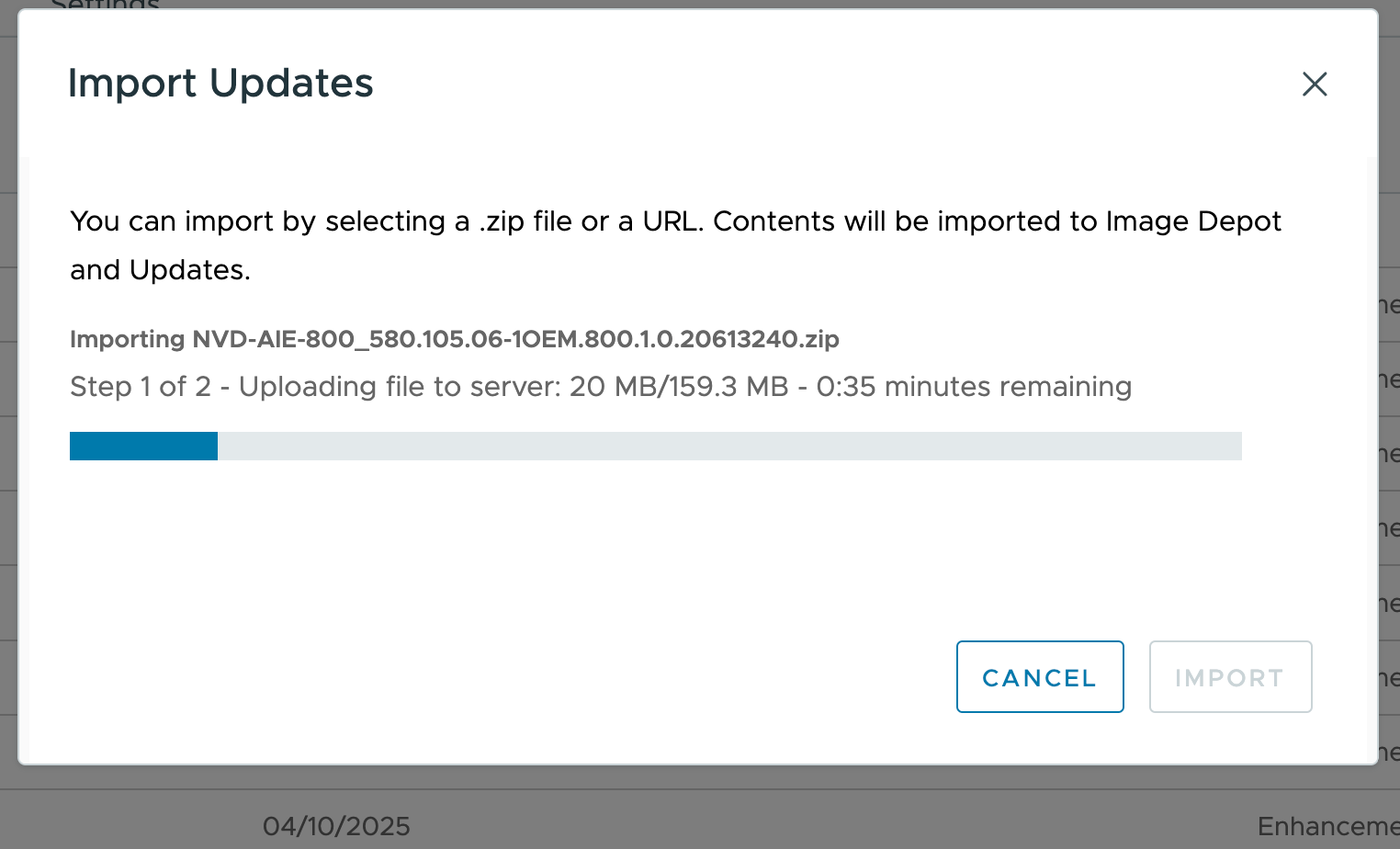
Click Actions → Import Updates and select the Nvidia .zip offline bundle file.
Wait for the import to complete. The component will appear under Component Catalog once processed. Filter by nvidia or vgpu to confirm visibility.
Step 2 — Edit the Cluster Image
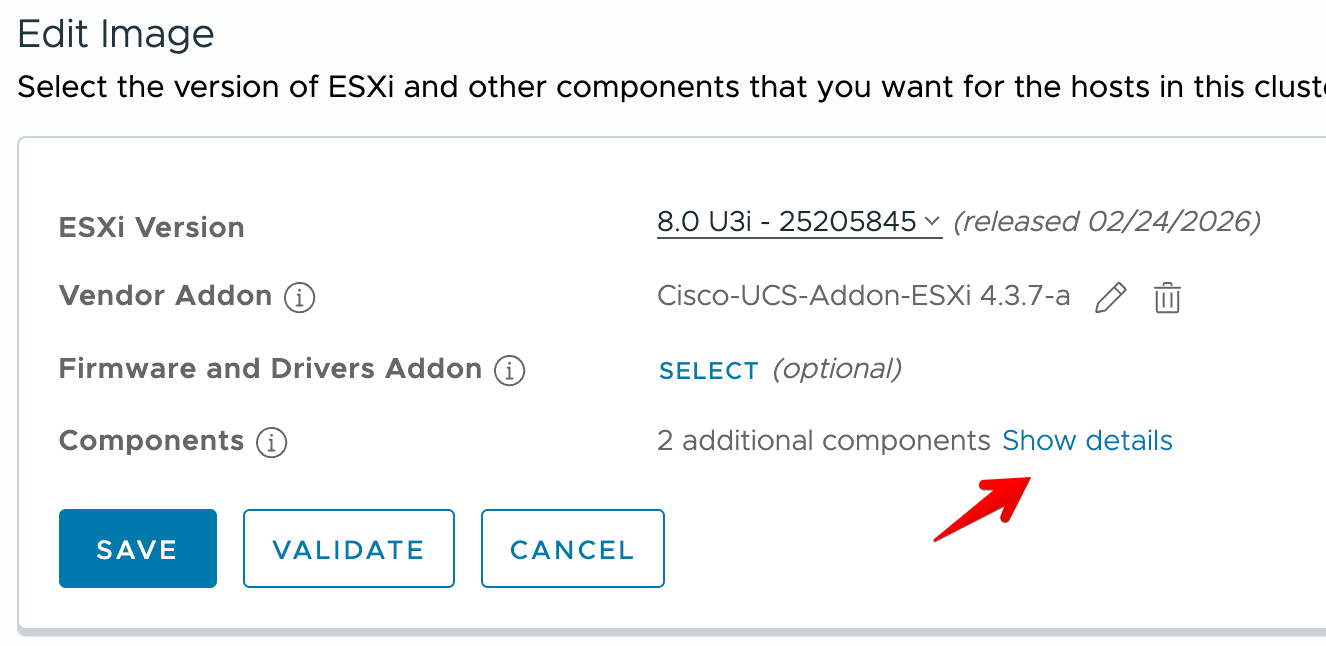
With the component imported, open the cluster’s desired image and add the driver as an optional component.
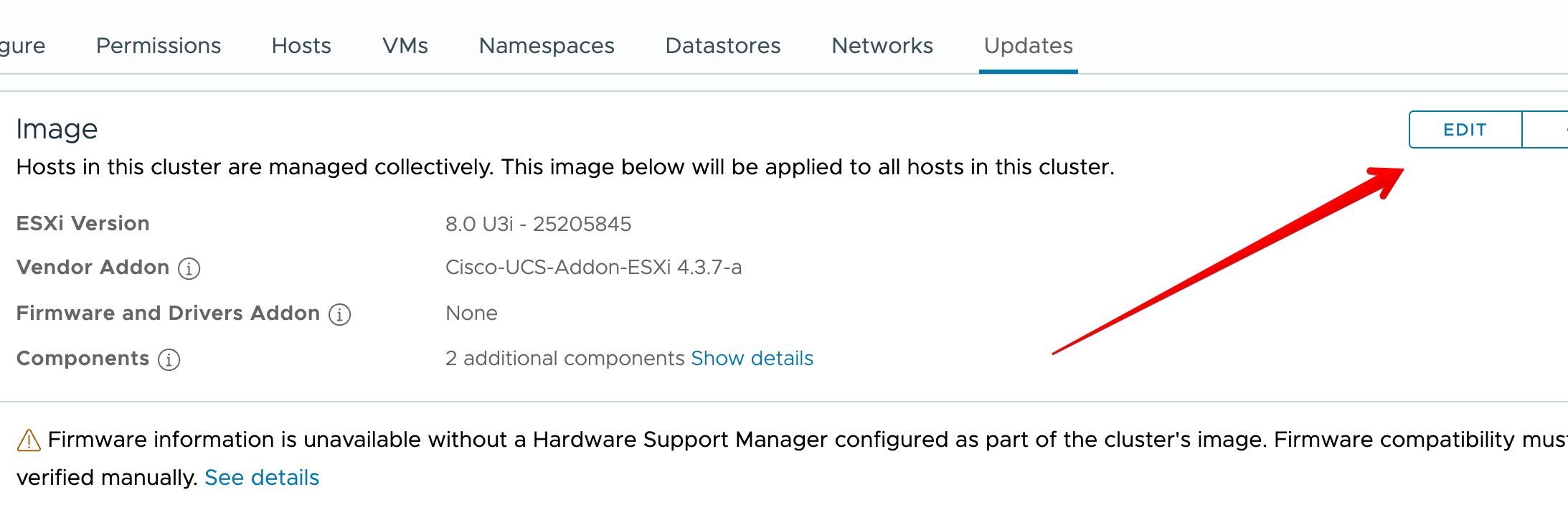
Go to the target cluster in vCenter inventory:
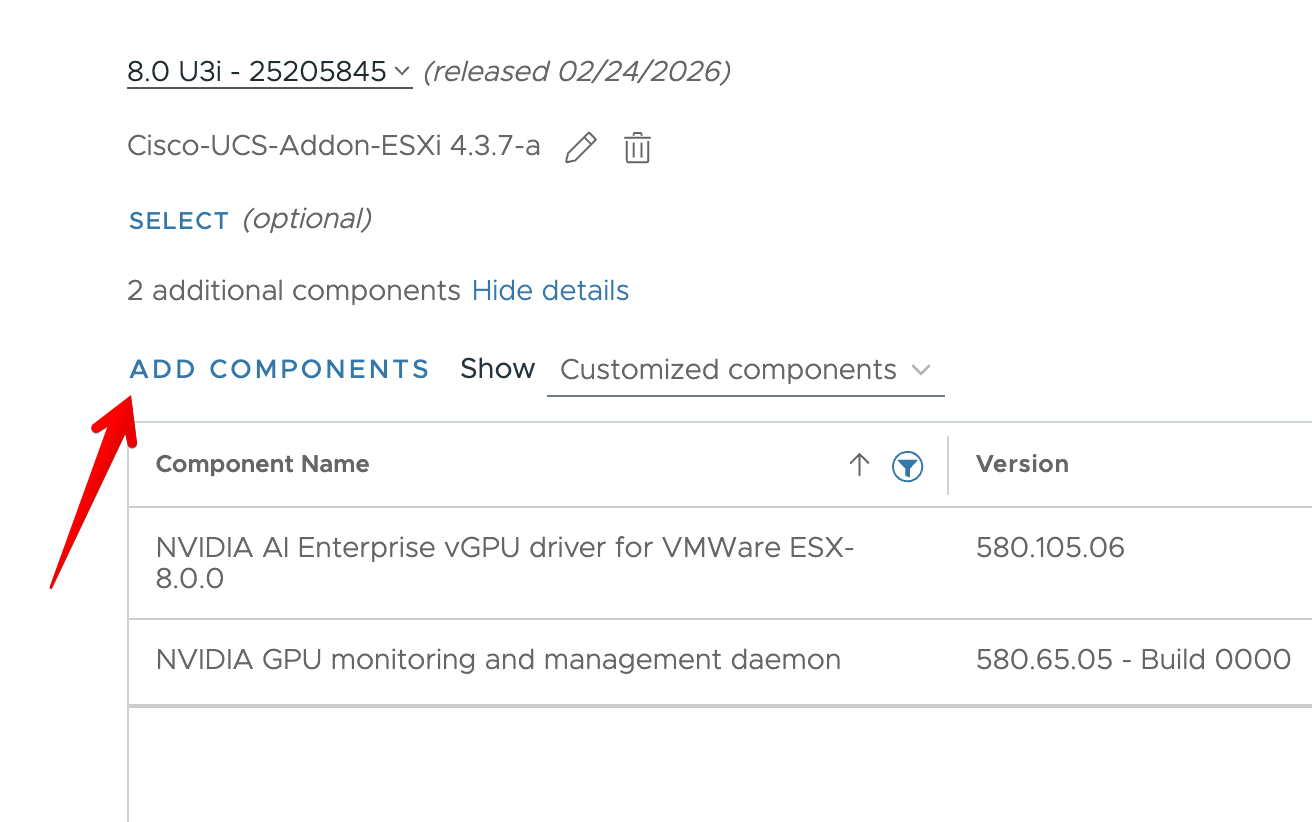
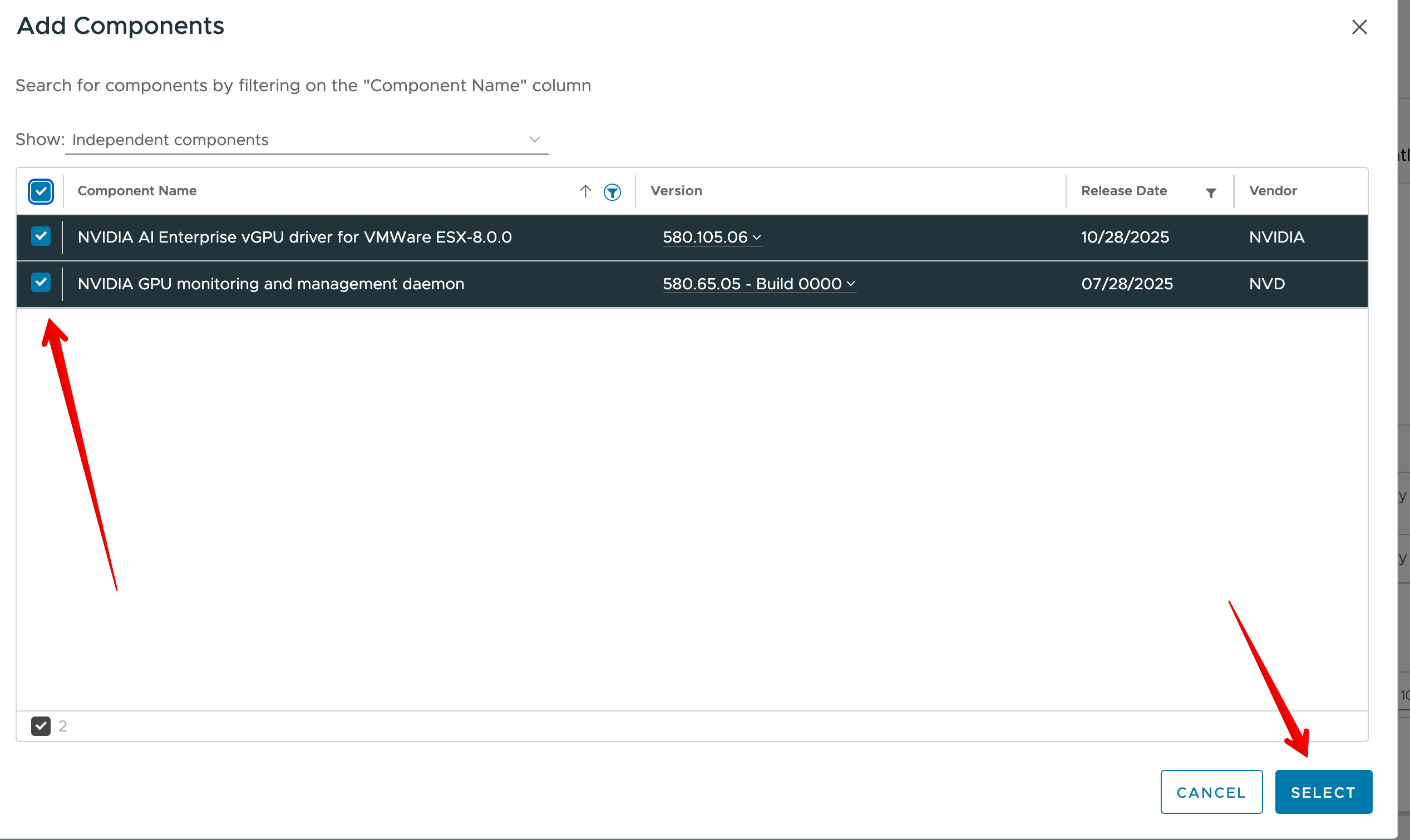
In the image editor, scroll to the Optional Components section at the bottom of the page. Click + Add Components.
Search for nvidia or vgpu. Select the matching component — version should align with the vGPU Manager version planned for VMs.
Click Save to update the desired image definition.
Step 3 — Validate the Image
Before remediating, run image validation to catch any dependency conflicts or hardware incompatibilities.
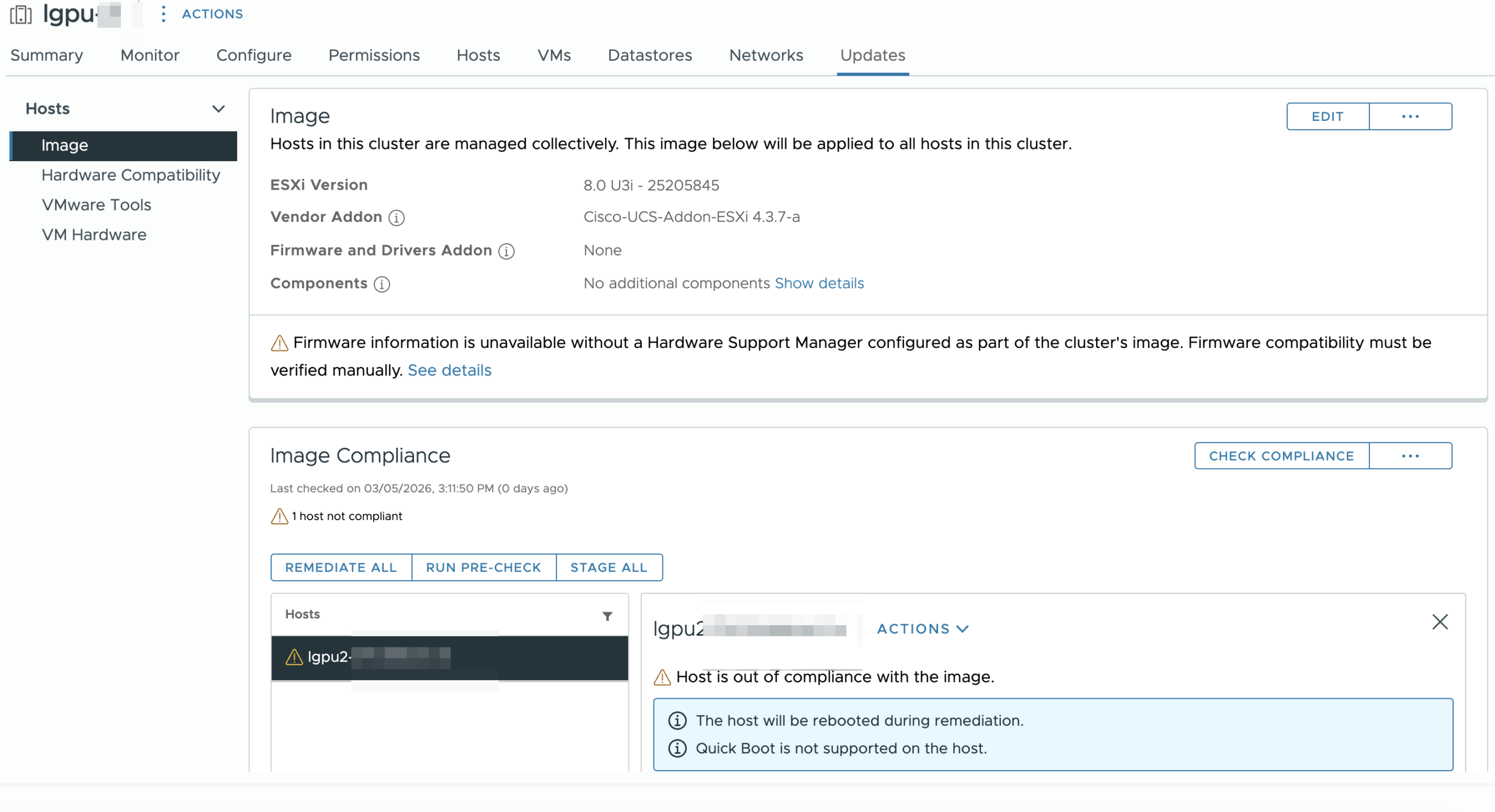
In the cluster Updates → Image view, click Check Compliance. This validates the image against current host state.
Review the compliance report. Hosts not carrying the Nvidia component will show Non-Compliant — this is expected and correct.
Step 4 — Remediate the Cluster
With validation passing, run remediation to push the Nvidia driver to all hosts.
Click Remediate All on the cluster image view. The wizard will present a summary of changes — confirm the Nvidia vGPU component appears in the diff.
Hosts will enter maintenance mode sequentially (respecting DRS), install the component, and reboot. This process is rolling — cluster availability is maintained if DRS is configured.
After remediation completes, verify on a host:
# Check installed VIBs
esxcli software vib list | grep -i nvidia

# Verify vGPU module loaded
vmkload_mod -l | grep nvidia

# Check GPU devices visible to host
nvidia-smi
A successful nvidia-smi output confirming driver version and GPU device visibility means the host is ready to serve vGPU-enabled VMs.
Verification — VM Side
Once the host driver is in place, create or modify a VM to use a vGPU profile. Assign a shared or dedicated GPU profile under VM Settings → Add Device → PCI Device → Shared PCI Device. Start the VM and confirm the Nvidia guest driver can enumerate the vGPU:
nvidia-smi
+-----------------------------------------------------------------------------+
| NVIDIA-SMI 510.108     Driver Version: 510.108    CUDA Version: 11.6       |
|-------------------------------+----------------------+----------------------+
| GPU  Name        Persistence-M| Bus-Id        Disp.A | Volatile Uncorr. ECC |
| 0 GRID V100-4Q Off | 00000000:02:01.0 Off | N/A |Post Scriptum
If the cluster image shows the Nvidia component as available in the depot but it does not appear in the optional components list during image editing, try clearing the browser cache or refreshing the depot sync under Lifecycle Manager → Depot → Sync. The component catalog can occasionally need a manual refresh after a new depot upload.